

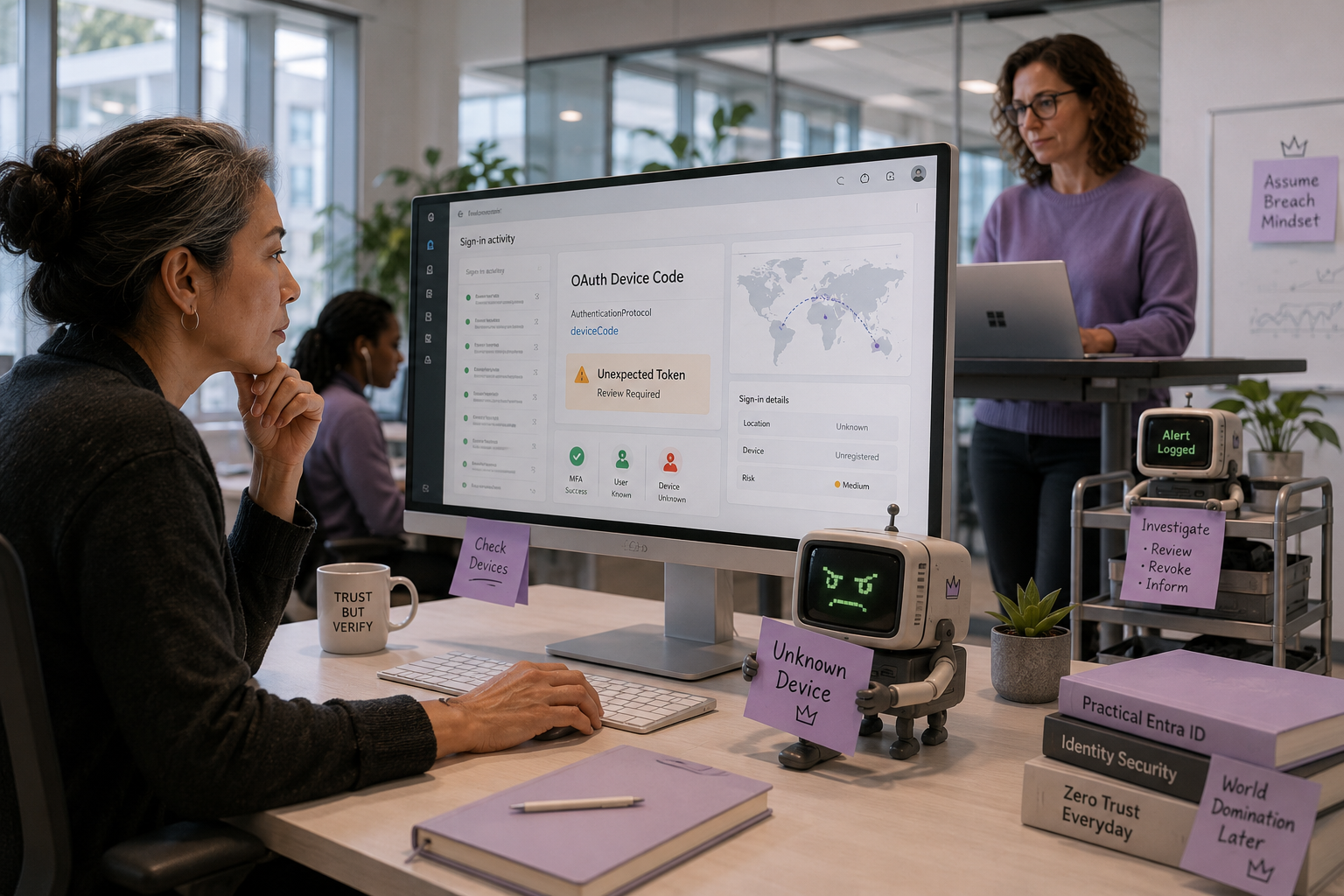
I found this one the hard way. Our security team flagged an anomaly in a clients Entra sign-in logs: a user session had authenticated successfully, MFA had been satisfied, and a fully active token had been issued against a device nobody recognized. No password was stolen. No fake login page was involved. The real Microsoft sign-in portal had done exactly what it was designed to do.
That is OAuth device code phishing, and it is sitting quietly in more M365 tenants than anyone is watching for.
My AI minions have been cataloging new attack patterns coming out of threat intel feeds this quarter. One of them nearly flagged this as a “novel authentication flow” before I explained what was actually happening. One step closer to world domination, but first, too many bad actors trying to stop us.
What the OAuth Device Code Flow Is (The Legitimate Version)
The device code flow exists because some devices genuinely cannot open a browser. Think smart TVs, command-line tools, Azure CLI sessions, or kiosk terminals. When you run az login --use-device-code, you get back a short code and a URL. You go to https://microsoft.com/devicelogin on your phone or laptop, enter the code, authenticate as yourself, and the original device gets a token. Clean, intentional, useful. I use it all the time when authenticating to client Microsoft systems using CLI.
Here is what that looks like in practice:
To sign in, use a web browser to open the page https://microsoft.com/devicelogin
and enter the code ABCD1234 to authenticate.
Microsoft designed this to solve a real problem. The flow is authenticated. MFA fires. Conditional Access evaluates. Everything looks normal. That is exactly what makes it dangerous when abused.
How OAuth Device Code Phishing Works Against You
An attacker does not need your password. They do not need to clone a login page. They just need to initiate a device code authentication request themselves and then convince you to complete it.
Here is the sequence:
- The attacker hits the Microsoft device code endpoint and generates a valid code tied to their own client application registration.
- They send you that code via email, Teams message, or text, dressed up as an IT support request or a “join this meeting” prompt.
- You navigate to the real
microsoft.com/deviceloginURL (not a fake page, the actual Microsoft site), enter the code, and authenticate with your credentials and MFA. - The token that gets issued goes to the attacker’s session, not yours. They now have a fully authenticated session as you, with whatever permissions your account holds, and no expiry tied to anything you can easily revoke.
You satisfied MFA. The URL was legitimate. There was no credential to steal. And someone is now walking around your tenant as your user.
This is not theoretical. Microsoft’s own threat intelligence team documented campaigns using this exact vector against government, defense, and financial organizations. The pattern has spread well beyond high-value targets.
Why This Beats Traditional Phishing
Traditional credential phishing has a few tells. The URL is wrong. The page looks slightly off. The sender domain is close but not exact. Security-aware users catch it. Email gateways catch it. Anti-phishing training covers it.
OAuth device code phishing breaks every one of those tripwires.
The URL is real. The authentication flow is legitimate. MFA fires and succeeds. No credentials are transmitted to the attacker at any point. From the user’s perspective, they did exactly what a legitimate IT request would have asked them to do. From your SIEM’s perspective, it looks like a normal successful authentication.
The only anomaly is in the device name or the application that received the token, and most organizations are not watching for that.
The Two Lures I Have Seen in the Wild
The Teams “join meeting” lure. An attacker spoofs or compromises a Teams message, or sends a phishing email that looks like a Teams meeting invite. The message says something like “Click here to join, or if you have trouble, go to microsoft.com/devicelogin and enter code ABCD1234.” The urgency of a meeting already starting gets users to comply fast.
The IT support “approve your device” lure. A message purportedly from IT tells the user their new laptop, mobile device, or remote access session needs to be verified before it can access company resources. “Please go to microsoft.com/devicelogin and enter the code we sent you to authorize the connection.” This one works especially well against non-technical users who are used to IT asking them to do confusing things.
Both lures are engineered around urgency and plausibility. Neither requires the attacker to own any infrastructure. The code expires in 15 minutes, which creates time pressure that short-circuits careful thinking.
How to Detect It After the Fact
Pull your Entra ID sign-in logs and look for these patterns:
- Sign-ins where Client App shows “Microsoft Authentication Broker” or an unfamiliar registered application
- Successful authentications where the Device Detail is blank or shows a device name you do not recognize
- Token grants that occurred at unusual hours relative to the user’s normal patterns
- Sign-ins where the MFA method shows success but the device compliance check shows “Not Applicable” or “Not Registered”
In the Entra portal, go to Monitoring > Sign-in logs, filter by Authentication protocol = “Device Code,” and look at the results. If you have never run that filter before, today is a good day to start.
You can also query this in Microsoft Sentinel or Defender for Cloud Apps. The KQL looks like this:
SigninLogs
| where AuthenticationProtocol == "deviceCode"
| where ResultType == 0
| project TimeGenerated, UserPrincipalName, AppDisplayName, DeviceDetail, IPAddress, Location
| order by TimeGenerated desc
Run that and see what comes back. Most clients I have looked at had entries they could not explain.
How to Prevent OAuth Device Code Phishing
The most direct control is a Conditional Access policy that blocks the device code flow for all users except where it is explicitly required.
In Entra ID, navigate to Protection > Conditional Access > Policies > New Policy. Under Conditions > Authentication flows, select “Device code flow.” Block it for all users, with exclusions for any service accounts or device management workflows that genuinely require it. Most organizations have zero legitimate use cases for regular users.
A secondary layer is monitoring and alerting. Create an alert rule in Sentinel or Defender for Identity that fires any time a device code authentication succeeds for a user who is not on your approved-devices list.
On the user education side, one message lands clearly: no legitimate IT system will ever send you a code to enter at microsoft.com/devicelogin out of the blue. If you receive one, call IT before you enter it. That is the rule. Period.
The 5-Step Checklist You Can Run This Week
Work through these five things before you close your laptop on Friday.
Step 1: Run the sign-in log query. Pull the KQL above or use the Entra portal filter for device code authentications. Look at the last 90 days. Flag any you cannot explain.
Step 2: Inventory your legitimate device code use cases. Check Azure CLI usage, any automation that runs az login, and any kiosk or display devices registered in your tenant. These are the only things that should be on your exclusion list.
Step 3: Build the Conditional Access block. Create the policy, put it in report-only mode for 48 hours, review what it would have blocked, then enable it. Do not skip the report-only step. You will find something you forgot. Trust me… My own client’s policies require me to use my VPN to log in, I can’t login without my VPN or physically being in the office. One of the best things ever.
Step 4: Create an alert rule. Whether you are in Sentinel, Defender for Cloud Apps, or a third-party SIEM, get an alert firing on successful device code authentications for non-excluded users. Make it go somewhere a human will see it.
Step 5: Brief your helpdesk. One sentence: “If a user calls saying they got a code to enter at microsoft.com/devicelogin and they didn’t initiate it, treat it as a security incident and escalate immediately.” That is the whole brief.
None of these steps require a security team. They require a Conditional Access license (P1 or above, included in Business Premium) and about three hours of focused work. However, my secuirty team is amazing, and I would never try to live this life without them. So if you need one, I know an amazing security team, hit me up. Tell them you read my blog. (very unshameful plug for Crimson IT, I got rent to pay and teens to get through highschool and college)
The attack is quiet. The detection is achievable. The prevention is straightforward once you know what you are looking for. Most tenants I have assessed in the past six months had device code flow wide open with no monitoring and no policy. Yours might too.
Run the query first. The results will tell you whether this is theoretical or already happening.